Working with Conditional Formats
Conditional formatting is a feature of Excel which allows you to apply a format to a cell or a range of cells based on certain criteria. For example you might apply rules like the following to highlight cells in different ranges.
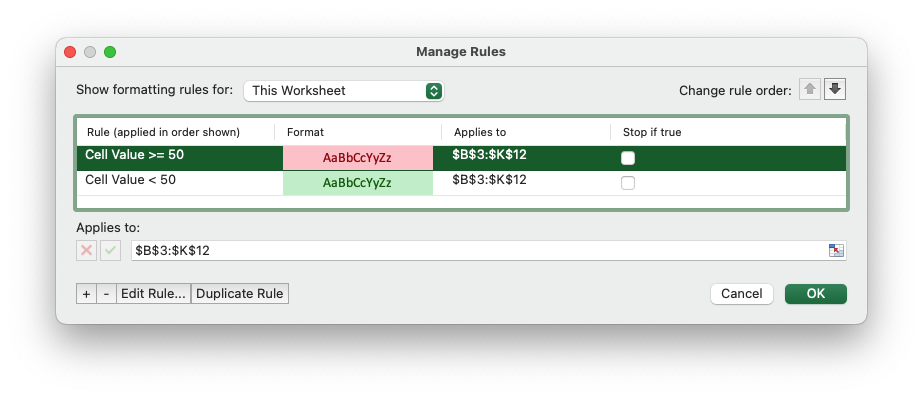
With rust_xlsxwriter we could emulate this by creating Format
instances and applying them to conditional format rules, like this:
// SPDX-License-Identifier: MIT OR Apache-2.0
//
// Copyright 2022-2026, John McNamara, jmcnamara@cpan.org

//! Example of adding a cell type conditional formatting to a worksheet. Cells
//! with values >= 50 are in light red. Values < 50 are in light green.

use rust_xlsxwriter::{
    ConditionalFormatCell, ConditionalFormatCellRule, Format, Workbook, XlsxError,
};

fn main() -> Result<(), XlsxError> {
    // Create a new Excel file object.
    let mut workbook = Workbook::new();
    let worksheet = workbook.add_worksheet();

    // Add some sample data.
    let data = [
        [90, 80, 50, 10, 20, 90, 40, 90, 30, 40],
        [20, 10, 90, 100, 30, 60, 70, 60, 50, 90],
        [10, 50, 60, 50, 20, 50, 80, 30, 40, 60],
        [10, 90, 20, 40, 10, 40, 50, 70, 90, 50],
        [70, 100, 10, 90, 10, 10, 20, 100, 100, 40],
        [20, 60, 10, 100, 30, 10, 20, 60, 100, 10],
        [10, 60, 10, 80, 100, 80, 30, 30, 70, 40],
        [30, 90, 60, 10, 10, 100, 40, 40, 30, 40],
        [80, 90, 10, 20, 20, 50, 80, 20, 60, 90],
        [60, 80, 30, 30, 10, 50, 80, 60, 50, 30],
    ];
    worksheet.write_row_matrix(2, 1, data)?;

    // Set the column widths for clarity.
    worksheet.set_column_range_width(1, 10, 6)?;

    // Add a format. Light red fill with dark red text.
    let format1 = Format::new()
        .set_font_color("9C0006")
        .set_background_color("FFC7CE");

    // Add a format. Green fill with dark green text.
    let format2 = Format::new()
        .set_font_color("006100")
        .set_background_color("C6EFCE");

    // Write a conditional format over a range.
    let conditional_format = ConditionalFormatCell::new()
        .set_rule(ConditionalFormatCellRule::GreaterThanOrEqualTo(50))
        .set_format(format1);

    worksheet.add_conditional_format(2, 1, 11, 10, &conditional_format)?;

    // Write another conditional format over the same range.
    let conditional_format = ConditionalFormatCell::new()
        .set_rule(ConditionalFormatCellRule::LessThan(50))
        .set_format(format2);

    worksheet.add_conditional_format(2, 1, 11, 10, &conditional_format)?;

    // Save the file.
    workbook.save("conditional_format.xlsx")?;

    Ok(())
}
Which would produce an output like the following. Cells with values >= 50 are in light red. Values < 50 are in light green.

Replicating an Excel conditional format with rust_xlsxwriter
It is important not to try to reverse engineer Excel's conditional
formatting rules from rust_xlsxwriter. If you aren't familiar with the
syntax and functionality of conditional formats then a better place to start
is in Excel. Create a conditional format in Excel to meet your needs and
then port it over to rust_xlsxwriter.
There are several common features of conditional formats (although some variants do not have all of these):
- A range: The range that the conditional format applies to. This is usually
set via the
Worksheet::add_conditional_format()method. - A rule: This can be an equality like
>=or a rule like "Top 10". - A target: This is usually a cell or range that the rule applies to. This mainly applies to Cell style conditional formats. For other types of conditional format the "range" is the target.
- A format: The cell format with properties such as text or background color to high the cell if the rule matches. This only applies to "Classic" conditional formats, see below.
Excel has four main categories of conditional format: Classic, Color Scale, Data Bar and Icon Sets. The Classic variants apply a format based on a rule. The newer versions apply a visualization such as a color scale, data bar or icons based on a rule.
The following are the structs that represent the main conditional format variants in Excel. See each of these sections for more information:
- Classic:
ConditionalFormatCell: The Cell style conditional format. This is the most common style of conditional formats which uses simple equalities such as "equal to" or "greater than" or "between". See the example above.ConditionalFormatAverage: The Average/Standard Deviation style conditional format.- [
ConditionalFormatBlank]: The Blank/Non-blank style conditional format. - [
ConditionalFormatDate]: The Dates Occurring style conditional format. ConditionalFormatDuplicate: The Duplicate/Unique style conditional format.- [
ConditionalFormatError]: The Error/Non-error style conditional format. ConditionalFormatFormula: The Formula style conditional format.ConditionalFormatText: The Text conditional format for rules like "contains" or "begins with".ConditionalFormatTop: The Top/Bottom style conditional format.
- Color Scale:
ConditionalFormat2ColorScale: The 2 color scale style conditional format.ConditionalFormat3ColorScale: The 3 color scale style conditional format.
- Data Bar:
ConditionalFormatDataBar: The Data Bar style conditional format.
- Icon Set:
ConditionalFormatIconSet: The Icon style conditional format.
Excel's limitations on conditional format properties
When using the "Classic" style of conditional format, see above, it is important to note that not all of Excel's cell format properties can be modified or set.
For example the view below of the Excel conditional format dialog shows the limited number of font properties that can be set. The available properties are highlighted with green.
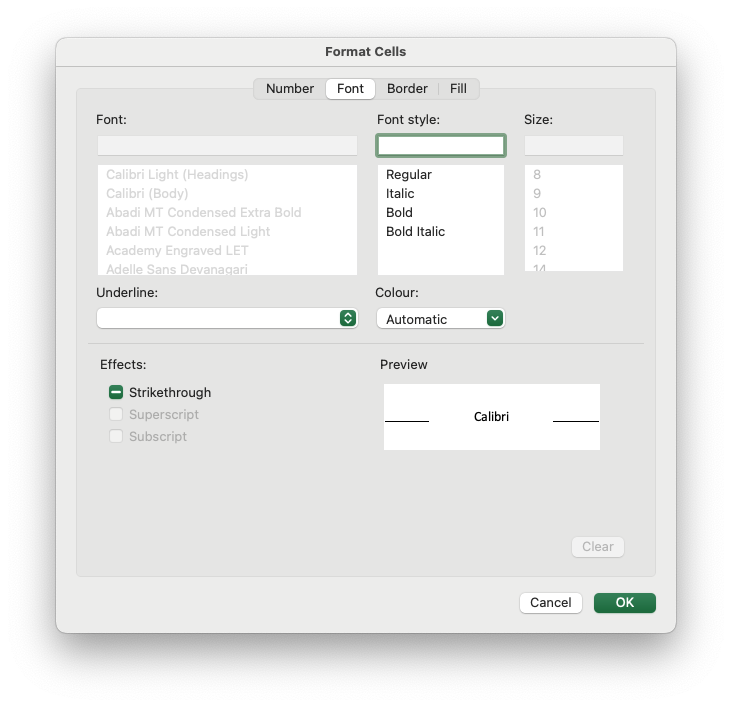
Properties that cannot be modified in a conditional format are font name, font size, superscript and subscript, diagonal borders, all alignment properties and all protection properties.
Selecting a non-contiguous range
In Excel it is possible to select several non-contiguous cells or ranges
like "B3:D6 I3:K6 B9:D12 I9:K12" and apply a conditional format to them.
It is possible to achieve a similar effect with rust_xlsxwriter by using
repeated calls to
Worksheet::add_conditional_format().
However this approach results in multiple identical conditional formats
applied to different cell ranges rather than one conditional format applied
to a multiple range selection.
If this distinction is important to you then you can get the Excel multiple
selection effect using the set_multi_range() which is provided for all the
ConditionalFormat types. See the example below and note that the cells
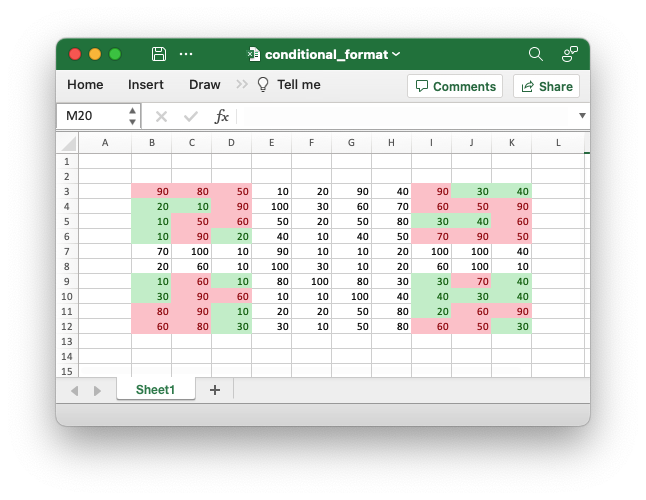
outside the selected ranges do not have any conditional formatting.
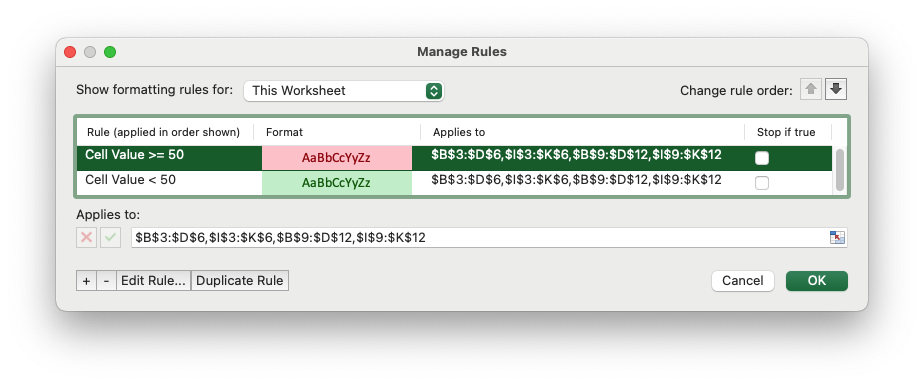
Note, you can use an Excel range like
"$B$3:$D$6,$I$3:$K$6,$B$9:$D$12,$I$9:$K$12" or omit the $ anchors and
replace the commas with spaces to have a clearer range like "B3:D6 I3:K6 B9:D12 I9:K12". The documentation and examples use the latter format for
clarity but it you are copying and pasting from Excel you can use the first
format.
// SPDX-License-Identifier: MIT OR Apache-2.0
//
// Copyright 2022-2026, John McNamara, jmcnamara@cpan.org

//! Example of adding a cell type conditional formatting to a worksheet over a
//! non-contiguous range. Cells with values >= 50 are in light red. Values < 50
//! are in light green. Note that the cells outside the selected ranges do not
//! have any conditional formatting.

use rust_xlsxwriter::{
    ConditionalFormatCell, ConditionalFormatCellRule, Format, Workbook, XlsxError,
};

fn main() -> Result<(), XlsxError> {
    // Create a new Excel file object.
    let mut workbook = Workbook::new();
    let worksheet = workbook.add_worksheet();

    // Add some sample data.
    let data = [
        [90, 80, 50, 10, 20, 90, 40, 90, 30, 40],
        [20, 10, 90, 100, 30, 60, 70, 60, 50, 90],
        [10, 50, 60, 50, 20, 50, 80, 30, 40, 60],
        [10, 90, 20, 40, 10, 40, 50, 70, 90, 50],
        [70, 100, 10, 90, 10, 10, 20, 100, 100, 40],
        [20, 60, 10, 100, 30, 10, 20, 60, 100, 10],
        [10, 60, 10, 80, 100, 80, 30, 30, 70, 40],
        [30, 90, 60, 10, 10, 100, 40, 40, 30, 40],
        [80, 90, 10, 20, 20, 50, 80, 20, 60, 90],
        [60, 80, 30, 30, 10, 50, 80, 60, 50, 30],
    ];
    worksheet.write_row_matrix(2, 1, data)?;

    // Set the column widths for clarity.
    worksheet.set_column_range_width(1, 10, 6)?;

    // Add a format. Light red fill with dark red text.
    let format1 = Format::new()
        .set_font_color("9C0006")
        .set_background_color("FFC7CE");

    // Add a format. Green fill with dark green text.
    let format2 = Format::new()
        .set_font_color("006100")
        .set_background_color("C6EFCE");

    // Write a conditional format over a non-contiguous range.
    let conditional_format = ConditionalFormatCell::new()
        .set_rule(ConditionalFormatCellRule::GreaterThanOrEqualTo(50))
        .set_multi_range("B3:D6 I3:K6 B9:D12 I9:K12")
        .set_format(format1);

    worksheet.add_conditional_format(2, 1, 11, 10, &conditional_format)?;

    // Write another conditional format over the same range.
    let conditional_format = ConditionalFormatCell::new()
        .set_rule(ConditionalFormatCellRule::LessThan(50))
        .set_multi_range("B3:D6 I3:K6 B9:D12 I9:K12")
        .set_format(format2);

    worksheet.add_conditional_format(2, 1, 11, 10, &conditional_format)?;

    // Save the file.
    workbook.save("conditional_format.xlsx")?;

    Ok(())
}
This creates conditional format rules like this:
And the following output file:
Relative and absolute references in conditional formats
When dealing with Excel conditional formats it is important to distinguish between relative and absolute cell references in Excel.
Relative cell references change when they are copied while absolute
references maintain fixed row and column references. In Excel absolute
references are prefixed by the dollar symbol like $A$1. See the Microsoft
Office documentation for more information on relative and absolute
references.
In conditional formats each of these four variants has a different effect on how the conditional format is applied:
A1: Column and row are relative. The conditional format rule is applied to each cell in the conditional format range.$A1: Column is absolute and row is relative. The conditional format rule is applied to each row based on the first cell in the row.A$1: Column is relative and row is absolute. The conditional format rule is applied to each column based on the first cell in the column.$A$1: Column and row are absolute. The conditional format rule is applied to the entire range based on the first cell in the range.
The effect is shown in the following example that highlights cells with even numbered values:
// This code is available in examples/doc_conditional_format_anchor.rs

use rust_xlsxwriter::{ConditionalFormatFormula, Format, Workbook, XlsxError};

fn main() -> Result<(), XlsxError> {
    // Create a new Excel file object.
    let mut workbook = Workbook::new();

    // Add a format. Green fill with dark green text.
    let format = Format::new()
        .set_font_color("006100")
        .set_background_color("C6EFCE");

    // Add some sample data.
    let data = [
        [34, 73, 39, 32, 75, 48, 75, 66],
        [5, 24, 1, 84, 54, 62, 60, 3],
        [28, 79, 97, 13, 85, 93, 93, 22],
        [27, 71, 40, 17, 18, 79, 90, 93],
        [88, 25, 33, 23, 67, 1, 59, 79],
        [23, 100, 20, 88, 29, 33, 38, 54],
        [7, 57, 88, 28, 10, 26, 37, 7],
        [53, 78, 1, 96, 26, 45, 47, 33],
        [60, 54, 81, 66, 81, 90, 80, 93],
        [70, 5, 46, 14, 71, 19, 66, 36],
    ];

    // Add a new worksheet and write the sample data.
    let worksheet = workbook.add_worksheet();
    worksheet.write_row_matrix(2, 1, data)?;

    // The rule is applied to each cell in the range.
    let conditional_format = ConditionalFormatFormula::new()
        .set_rule("=ISEVEN(B3)")
        .set_format(&format);

    worksheet.add_conditional_format(2, 1, 11, 8, &conditional_format)?;

    // Add a new worksheet and write the sample data.
    let worksheet = workbook.add_worksheet();
    worksheet.write_row_matrix(2, 1, data)?;

    // The rule is applied to each row based on the first row in the column.
    let conditional_format = ConditionalFormatFormula::new()
        .set_rule("=ISEVEN($B3)")
        .set_format(&format);

    worksheet.add_conditional_format(2, 1, 11, 8, &conditional_format)?;

    // Add a new worksheet and write the sample data.
    let worksheet = workbook.add_worksheet();
    worksheet.write_row_matrix(2, 1, data)?;

    // The rule is applied to each column based on the first cell in the column.
    let conditional_format = ConditionalFormatFormula::new()
        .set_rule("=ISEVEN(B$3)")
        .set_format(&format);

    worksheet.add_conditional_format(2, 1, 11, 8, &conditional_format)?;

    // Add a new worksheet and write the sample data.
    let worksheet = workbook.add_worksheet();
    worksheet.write_row_matrix(2, 1, data)?;

    // The rule is applied to the entire range based on the first cell in the range.
    let conditional_format = ConditionalFormatFormula::new()
        .set_rule("=ISEVEN($B$3)")
        .set_format(format);

    worksheet.add_conditional_format(2, 1, 11, 8, &conditional_format)?;

    // Save the file.
    workbook.save("conditional_format.xlsx")?;

    Ok(())
}
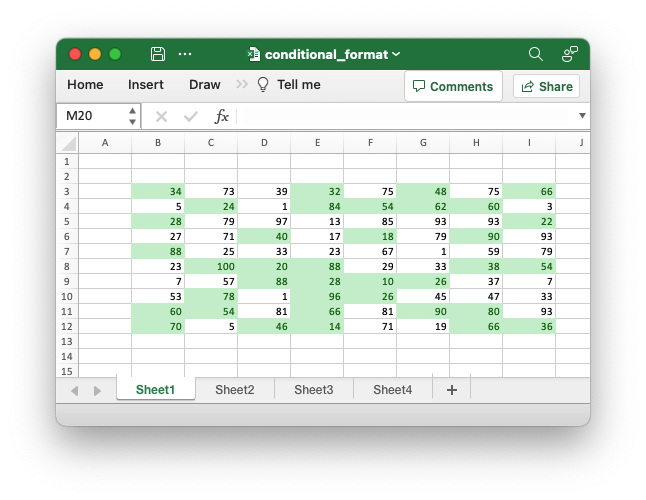
Output for the formula =ISEVEN(B3), note that each cell in the range is
evaluated individually:
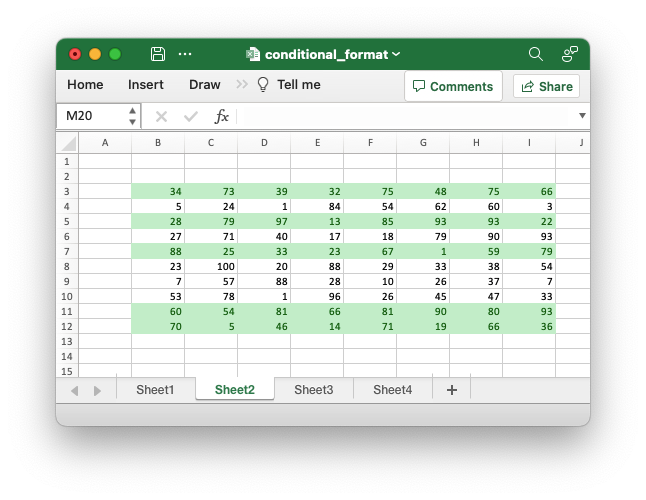
Output for the formula =ISEVEN($B3), note that the first cell in the row
is evaluated and the row is formatted appropriately:
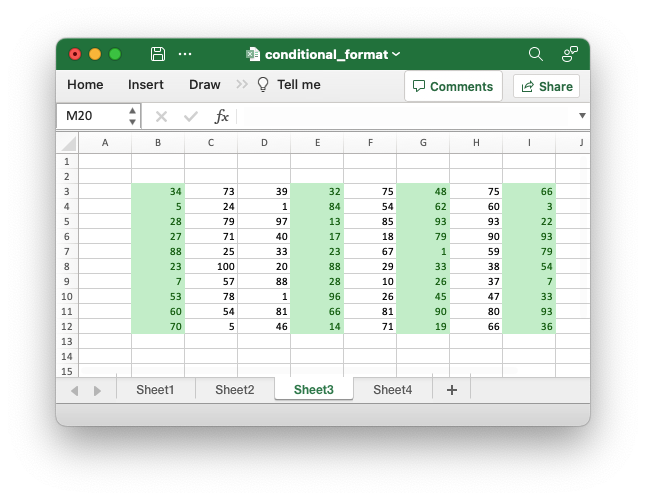
Output for the formula =ISEVEN(B$3), note that the first cell in the
column is evaluated and the column is formatted appropriately:
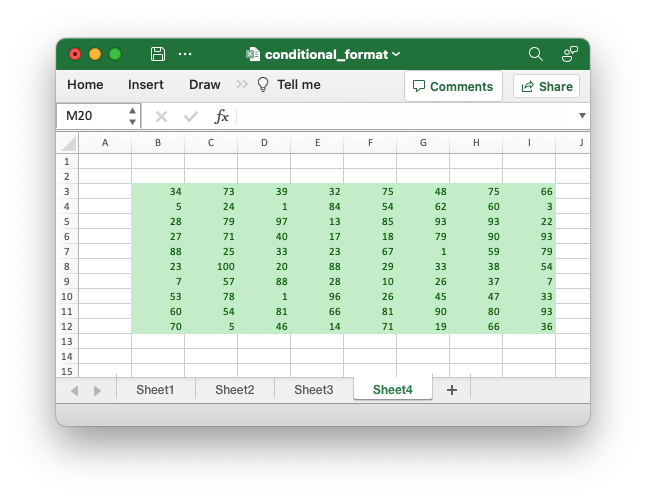
Output for the formula =ISEVEN($B$3), note that the first cell in the
range is evaluated and the entire range is formatted appropriately:
Examples
Conditional formatting is a feature of Excel which allows you to apply a format to a cell or a range of cells based on user defined rules. For example you might apply rules like the following to highlight cells in different ranges.
The examples below show how to use the various types of conditional
formatting with rust_xlsxwriter.
Some examples:
Example 1. Cell conditional formatting. Cells with values >= 50 are in light red. Values < 50 are in light green.
See ConditionalFormatCell for more details.
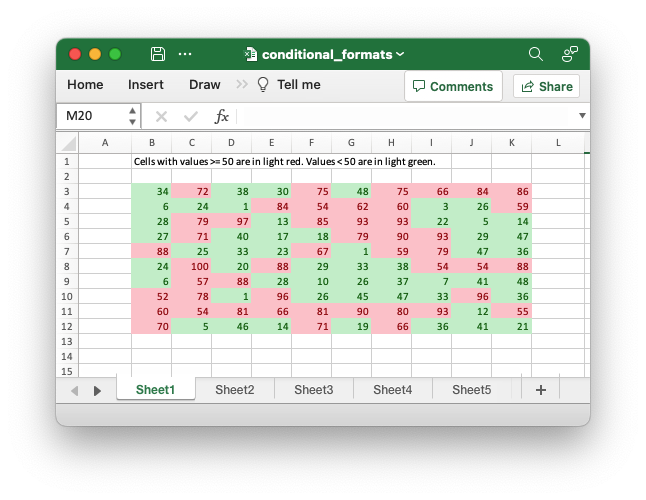
Code to generate the above example:
    // Write a conditional format over a range.
    let conditional_format = ConditionalFormatCell::new()
        .set_rule(ConditionalFormatCellRule::GreaterThanOrEqualTo(50))
        .set_format(&format1);

    worksheet.add_conditional_format(2, 1, 11, 10, &conditional_format)?;

    // Write another conditional format over the same range.
    let conditional_format = ConditionalFormatCell::new()
        .set_rule(ConditionalFormatCellRule::LessThan(50))
        .set_format(&format2);

    worksheet.add_conditional_format(2, 1, 11, 10, &conditional_format)?;
Example 2. Cell conditional formatting with between ranges. Values between 30 and 70 are in light red. Values outside that range are in light green.
See ConditionalFormatCell for more details.
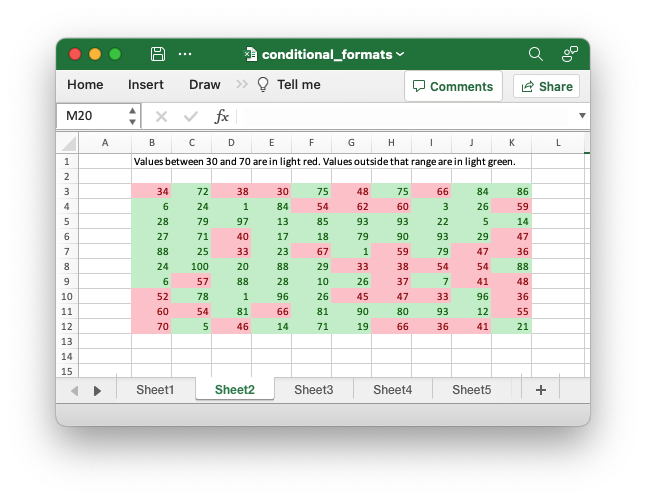
Code to generate the above example:
    // Write a conditional format over a range.
    let conditional_format = ConditionalFormatCell::new()
        .set_rule(ConditionalFormatCellRule::Between(30, 70))
        .set_format(&format1);

    worksheet.add_conditional_format(2, 1, 11, 10, &conditional_format)?;

    // Write another conditional format over the same range.
    let conditional_format = ConditionalFormatCell::new()
        .set_rule(ConditionalFormatCellRule::NotBetween(30, 70))
        .set_format(&format2);

    worksheet.add_conditional_format(2, 1, 11, 10, &conditional_format)?;
Example 3. Duplicate and Unique conditional formats. Duplicate values are in light red. Unique values are in light green.
See ConditionalFormatDuplicate for more details.
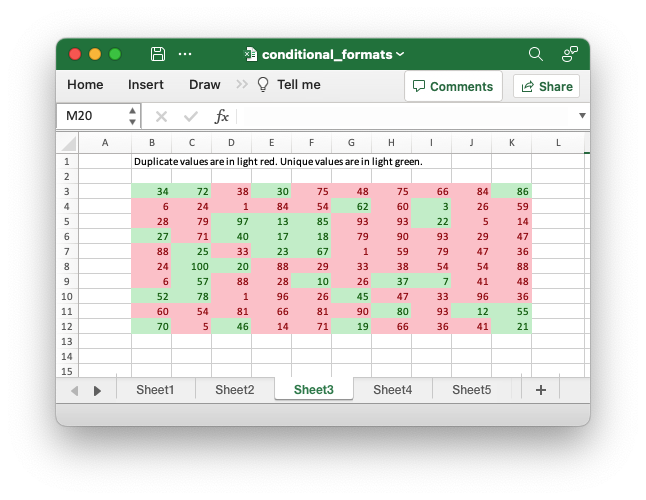
Code to generate the above example:
    // Write a conditional format over a range.
    let conditional_format = ConditionalFormatDuplicate::new().set_format(&format1);

    worksheet.add_conditional_format(2, 1, 11, 10, &conditional_format)?;

    // Invert the duplicate conditional format to show unique values in the
    // same range.
    let conditional_format = ConditionalFormatDuplicate::new()
        .invert()
        .set_format(&format2);

    worksheet.add_conditional_format(2, 1, 11, 10, &conditional_format)?;
Example 4. Above and Below Average conditional formats. Above average values are in light red. Below average values are in light green.
See ConditionalFormatAverage for more details.
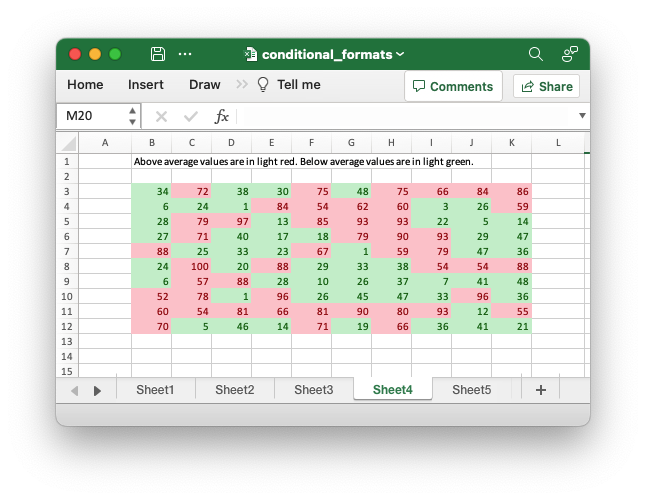
Code to generate the above example:
    // Write a conditional format over a range. The default criteria is Above Average.
    let conditional_format = ConditionalFormatAverage::new().set_format(&format1);

    worksheet.add_conditional_format(2, 1, 11, 10, &conditional_format)?;

    // Write another conditional format over the same range.
    let conditional_format = ConditionalFormatAverage::new()
        .set_rule(ConditionalFormatAverageRule::BelowAverage)
        .set_format(&format2);

    worksheet.add_conditional_format(2, 1, 11, 10, &conditional_format)?;
Example 5. Top and Bottom range conditional formats. Top 10 values are in light red. Bottom 10 values are in light green.
See ConditionalFormatTop for more details.
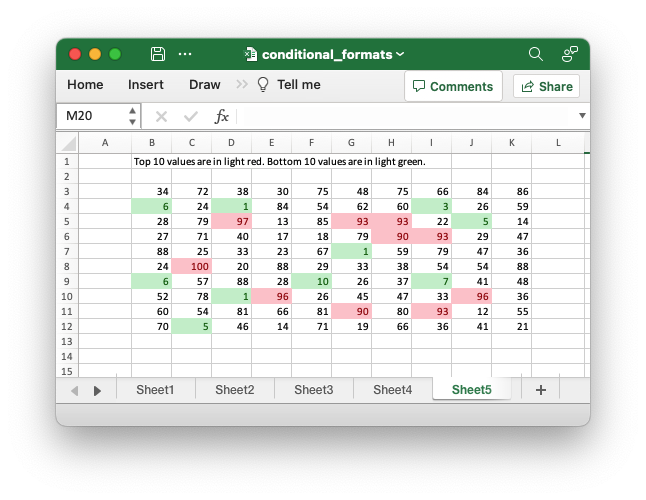
Code to generate the above example:
    // Write a conditional format over a range.
    let conditional_format = ConditionalFormatTop::new()
        .set_rule(rust_xlsxwriter::ConditionalFormatTopRule::Top(10))
        .set_format(&format1);

    worksheet.add_conditional_format(2, 1, 11, 10, &conditional_format)?;

    // Also show the bottom values in the same range.
    let conditional_format = ConditionalFormatTop::new()
        .set_rule(rust_xlsxwriter::ConditionalFormatTopRule::Bottom(10))
        .set_format(&format2);

    worksheet.add_conditional_format(2, 1, 11, 10, &conditional_format)?;
Example 6. Cell conditional formatting in non-contiguous range. Cells with values >= 50 are in light red. Values < 50 are in light green. Non-contiguous ranges.
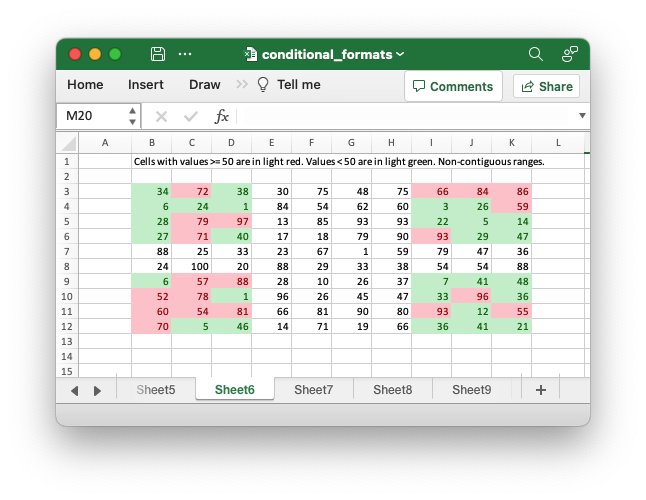
Code to generate the above example:
    // Write a conditional format over a non-contiguous range.
    let conditional_format = ConditionalFormatCell::new()
        .set_rule(ConditionalFormatCellRule::GreaterThanOrEqualTo(50))
        .set_multi_range("B3:D6 I3:K6 B9:D12 I9:K12")
        .set_format(&format1);

    worksheet.add_conditional_format(2, 1, 11, 10, &conditional_format)?;

    // Write another conditional format over the same range.
    let conditional_format = ConditionalFormatCell::new()
        .set_rule(ConditionalFormatCellRule::LessThan(50))
        .set_multi_range("B3:D6 I3:K6 B9:D12 I9:K12")
        .set_format(&format2);

    worksheet.add_conditional_format(2, 1, 11, 10, &conditional_format)?;
Example 7. Formula conditional formatting. Even numbered cells are in light green. Odd numbered cells are in light red.
See ConditionalFormatFormula for more details.
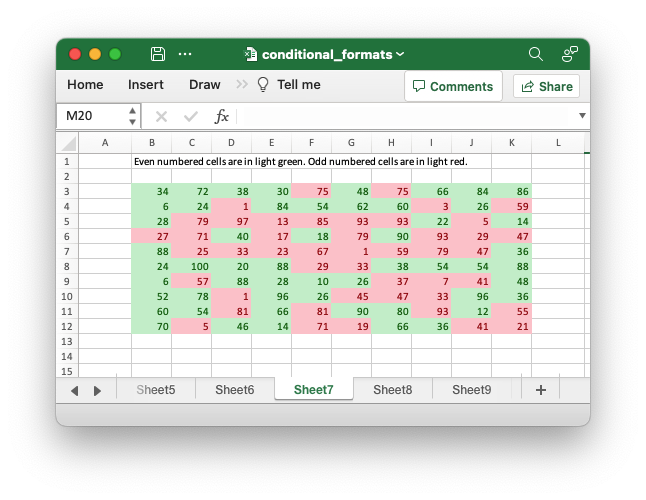
Code to generate the above example:
    // Write a conditional format over a range.
    let conditional_format = ConditionalFormatFormula::new()
        .set_rule("=ISODD(B3)")
        .set_format(&format1);

    worksheet.add_conditional_format(2, 1, 11, 10, &conditional_format)?;

    // Write another conditional format over the same range.
    let conditional_format = ConditionalFormatFormula::new()
        .set_rule("=ISEVEN(B3)")
        .set_format(&format2);

    worksheet.add_conditional_format(2, 1, 11, 10, &conditional_format)?;
Example 8. Text style conditional formats. Column A shows words that contain the sub-word 'rust'. Column C shows words that start/end with 't'
See ConditionalFormatText for more details.
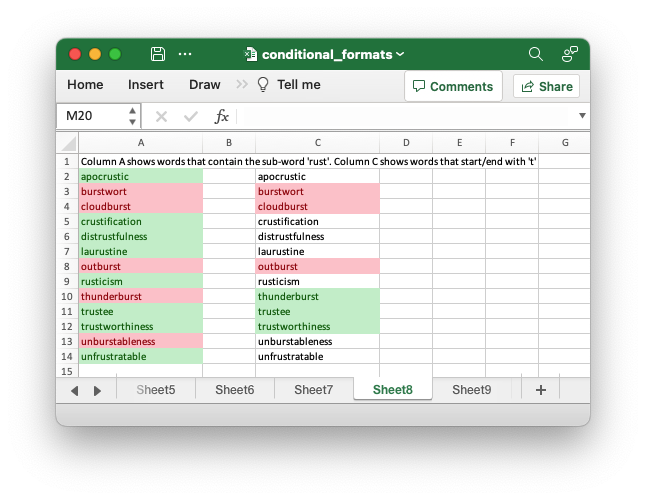
Code to generate the above example:
    // Write a text "containing" conditional format over a range.
    let conditional_format = ConditionalFormatText::new()
        .set_rule(ConditionalFormatTextRule::Contains("rust".to_string()))
        .set_format(&format2);

    worksheet.add_conditional_format(1, 0, 13, 0, &conditional_format)?;

    // Write a text "not containing" conditional format over the same range.
    let conditional_format = ConditionalFormatText::new()
        .set_rule(ConditionalFormatTextRule::DoesNotContain(
            "rust".to_string(),
        ))
        .set_format(&format1);

    worksheet.add_conditional_format(1, 0, 13, 0, &conditional_format)?;

    // Write a text "begins with" conditional format over a range.
    let conditional_format = ConditionalFormatText::new()
        .set_rule(ConditionalFormatTextRule::BeginsWith("t".to_string()))
        .set_format(&format2);

    worksheet.add_conditional_format(1, 2, 13, 2, &conditional_format)?;

    // Write a text "ends with" conditional format over the same range.
    let conditional_format = ConditionalFormatText::new()
        .set_rule(ConditionalFormatTextRule::EndsWith("t".to_string()))
        .set_format(&format1);

    worksheet.add_conditional_format(1, 2, 13, 2, &conditional_format)?;
Example 9. Examples of 2 color scale conditional formats.
See ConditionalFormat2ColorScale for more details.
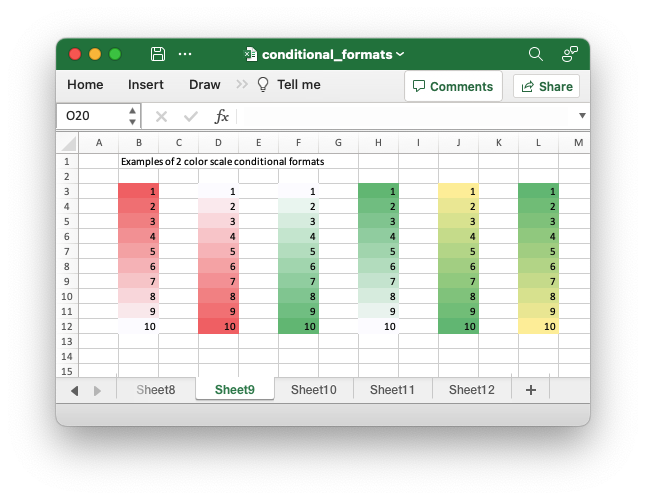
Code to generate the above example:
    // Write 2 color scale formats with standard Excel colors.
    let conditional_format = ConditionalFormat2ColorScale::new()
        .set_minimum_color("F8696B")
        .set_maximum_color("FCFCFF");

    worksheet.add_conditional_format(2, 1, 11, 1, &conditional_format)?;

    let conditional_format = ConditionalFormat2ColorScale::new()
        .set_minimum_color("FCFCFF")
        .set_maximum_color("F8696B");

    worksheet.add_conditional_format(2, 3, 11, 3, &conditional_format)?;

    let conditional_format = ConditionalFormat2ColorScale::new()
        .set_minimum_color("FCFCFF")
        .set_maximum_color("63BE7B");

    worksheet.add_conditional_format(2, 5, 11, 5, &conditional_format)?;

    let conditional_format = ConditionalFormat2ColorScale::new()
        .set_minimum_color("63BE7B")
        .set_maximum_color("FCFCFF");

    worksheet.add_conditional_format(2, 7, 11, 7, &conditional_format)?;

    let conditional_format = ConditionalFormat2ColorScale::new()
        .set_minimum_color("FFEF9C")
        .set_maximum_color("63BE7B");

    worksheet.add_conditional_format(2, 9, 11, 9, &conditional_format)?;

    let conditional_format = ConditionalFormat2ColorScale::new()
        .set_minimum_color("63BE7B")
        .set_maximum_color("FFEF9C");

    worksheet.add_conditional_format(2, 11, 11, 11, &conditional_format)?;
Example 10. Examples of 3 color scale conditional formats.
See ConditionalFormat3ColorScale for more details.
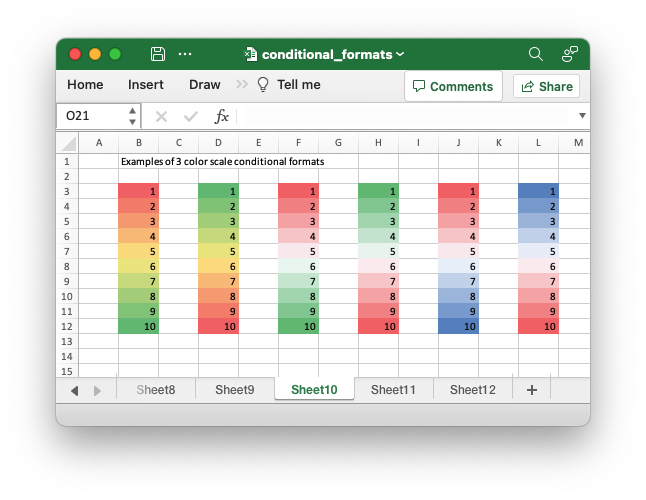
Code to generate the above example:
    // Write 3 color scale formats with standard Excel colors.
    let conditional_format = ConditionalFormat3ColorScale::new()
        .set_minimum_color("F8696B")
        .set_midpoint_color("FFEB84")
        .set_maximum_color("63BE7B");

    worksheet.add_conditional_format(2, 1, 11, 1, &conditional_format)?;

    let conditional_format = ConditionalFormat3ColorScale::new()
        .set_minimum_color("63BE7B")
        .set_midpoint_color("FFEB84")
        .set_maximum_color("F8696B");

    worksheet.add_conditional_format(2, 3, 11, 3, &conditional_format)?;

    let conditional_format = ConditionalFormat3ColorScale::new()
        .set_minimum_color("F8696B")
        .set_midpoint_color("FCFCFF")
        .set_maximum_color("63BE7B");

    worksheet.add_conditional_format(2, 5, 11, 5, &conditional_format)?;

    let conditional_format = ConditionalFormat3ColorScale::new()
        .set_minimum_color("63BE7B")
        .set_midpoint_color("FCFCFF")
        .set_maximum_color("F8696B");

    worksheet.add_conditional_format(2, 7, 11, 7, &conditional_format)?;

    let conditional_format = ConditionalFormat3ColorScale::new()
        .set_minimum_color("F8696B")
        .set_midpoint_color("FCFCFF")
        .set_maximum_color("5A8AC6");

    worksheet.add_conditional_format(2, 9, 11, 9, &conditional_format)?;

    let conditional_format = ConditionalFormat3ColorScale::new()
        .set_minimum_color("5A8AC6")
        .set_midpoint_color("FCFCFF")
        .set_maximum_color("F8696B");

    worksheet.add_conditional_format(2, 11, 11, 11, &conditional_format)?;
Example 11. Examples of data bars.
See ConditionalFormatDataBar for more details.
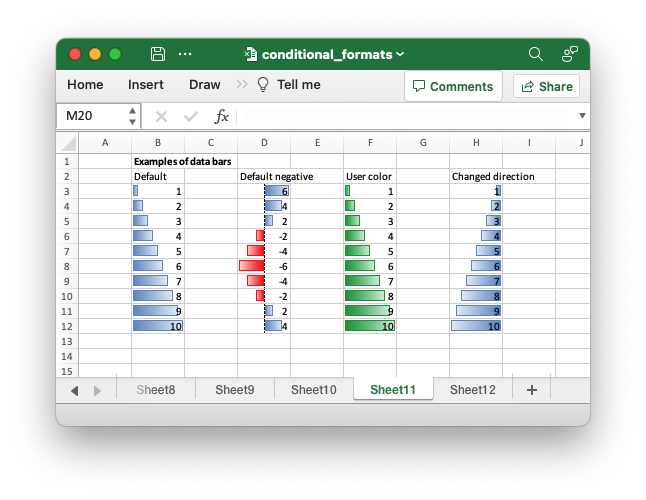
Code to generate the above example:
    // Write a standard Excel data bar.
    let conditional_format = ConditionalFormatDataBar::new();

    worksheet.add_conditional_format(2, 1, 11, 1, &conditional_format)?;

    // Write a standard Excel data bar with negative data
    let conditional_format = ConditionalFormatDataBar::new();

    worksheet.add_conditional_format(2, 3, 11, 3, &conditional_format)?;

    // Write a data bar with a user defined fill color.
    let conditional_format = ConditionalFormatDataBar::new().set_fill_color("009933");

    worksheet.add_conditional_format(2, 5, 11, 5, &conditional_format)?;

    // Write a data bar with the direction changed.
    let conditional_format = ConditionalFormatDataBar::new()
        .set_direction(ConditionalFormatDataBarDirection::RightToLeft);

    worksheet.add_conditional_format(2, 7, 11, 7, &conditional_format)?;
Example 12. Examples of icon style conditional formats.
See ConditionalFormatIconSet for more details.
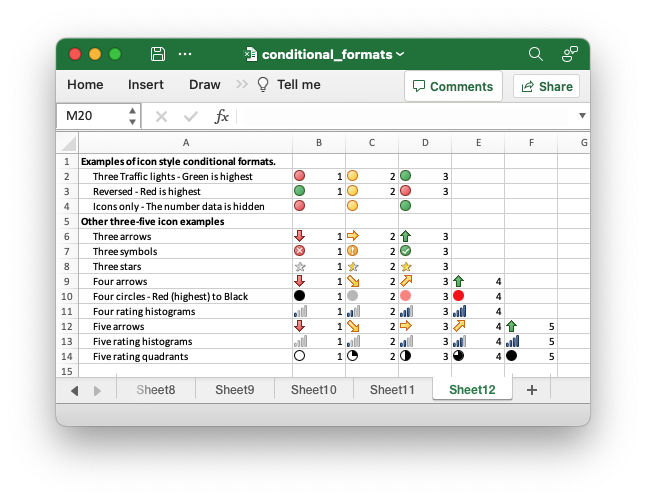
Code to generate the above example:
    // Three Traffic lights - Green is highest.
    let conditional_format = ConditionalFormatIconSet::new()
        .set_icon_type(ConditionalFormatIconType::ThreeTrafficLights);

    worksheet.add_conditional_format(1, 1, 1, 3, &conditional_format)?;

    // Reversed - Red is highest.
    let conditional_format = ConditionalFormatIconSet::new()
        .set_icon_type(ConditionalFormatIconType::ThreeTrafficLights)
        .reverse_icons(true);

    worksheet.add_conditional_format(2, 1, 2, 3, &conditional_format)?;

    // Icons only - The number data is hidden.
    let conditional_format = ConditionalFormatIconSet::new()
        .set_icon_type(ConditionalFormatIconType::ThreeTrafficLights)
        .show_icons_only(true);

    worksheet.add_conditional_format(3, 1, 3, 3, &conditional_format)?;

    // Three arrows.
    let conditional_format =
        ConditionalFormatIconSet::new().set_icon_type(ConditionalFormatIconType::ThreeArrows);

    worksheet.add_conditional_format(5, 1, 5, 3, &conditional_format)?;

    // Three symbols.
    let conditional_format = ConditionalFormatIconSet::new()
        .set_icon_type(ConditionalFormatIconType::ThreeSymbolsCircled);

    worksheet.add_conditional_format(6, 1, 6, 3, &conditional_format)?;

    // Three stars.
    let conditional_format =
        ConditionalFormatIconSet::new().set_icon_type(ConditionalFormatIconType::ThreeStars);

    worksheet.add_conditional_format(7, 1, 7, 3, &conditional_format)?;

    // Four Arrows.
    let conditional_format =
        ConditionalFormatIconSet::new().set_icon_type(ConditionalFormatIconType::FourArrows);

    worksheet.add_conditional_format(8, 1, 8, 4, &conditional_format)?;

    // Four circles - Red (highest) to Black (lowest).
    let conditional_format =
        ConditionalFormatIconSet::new().set_icon_type(ConditionalFormatIconType::FourRedToBlack);

    worksheet.add_conditional_format(9, 1, 9, 4, &conditional_format)?;

    // Four rating histograms.
    let conditional_format =
        ConditionalFormatIconSet::new().set_icon_type(ConditionalFormatIconType::FourHistograms);

    worksheet.add_conditional_format(10, 1, 10, 4, &conditional_format)?;

    // Four Arrows.
    let conditional_format =
        ConditionalFormatIconSet::new().set_icon_type(ConditionalFormatIconType::FiveArrows);

    worksheet.add_conditional_format(11, 1, 11, 5, &conditional_format)?;

    // Four rating histograms.
    let conditional_format =
        ConditionalFormatIconSet::new().set_icon_type(ConditionalFormatIconType::FiveHistograms);

    worksheet.add_conditional_format(12, 1, 12, 5, &conditional_format)?;

    // Four rating quadrants.
    let conditional_format =
        ConditionalFormatIconSet::new().set_icon_type(ConditionalFormatIconType::FiveQuadrants);

    worksheet.add_conditional_format(13, 1, 13, 5, &conditional_format)?;