Working with Macros
This section explains how to add a VBA file containing functions or macros to a rust_xlsxwriter file.
The Excel XLSM File Format
An Excel xlsm file is structurally the same as an xlsx file, except that it
contains an additional vbaProject.bin binary file containing VBA functions
and/or macros.
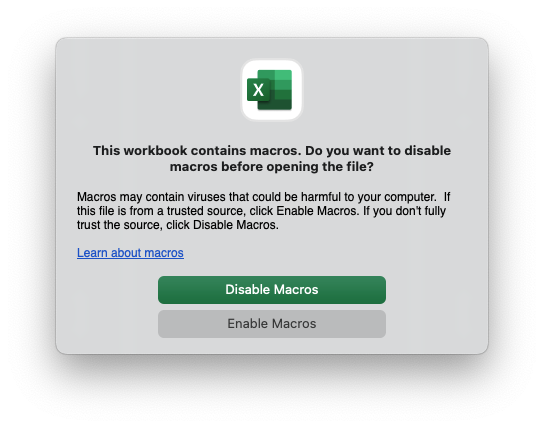
Excel xlsm files are subject to additional security checks and warnings when
loaded:
How VBA macros are included in rust_xlsxwriter
The vbaProject.bin in a xlsm file is a binary OLE COM container. This was
the format used in older xls versions of Excel prior to Excel 2007. Unlike
other components of an xlsx/xlsm file, the data isn't stored in XML format.
Instead, the functions and macros are stored in a pre-parsed binary format. As
such, it wouldn't be feasible to programmatically define macros and create a
vbaProject.bin file from scratch (at least not in the remaining lifespan and
interest levels of the author).
Instead, as a workaround, a utility is used to extract vbaProject.bin files
from existing xlsm files, which you can then add to rust_xlsxwriter files.
The vba_extract Utility
The Rust vba_extract utility is used
to extract the vbaProject.bin binary from an Excel xlsm file. The utility
can be installed via cargo:
$ cargo install vba_extract
Once vba_extract is installed, it can be used as follows:
$ vba_extract macro_file.xlsm

Extracted: vbaProject.bin
If the VBA project is signed, vba_extract also extracts the
vbaProjectSignature.bin file from the xlsm file (see below).
The syntax and options for vba_extract are:
$ vba_extract --help

Utility to extract a `vbaProject.bin` binary from an Excel `xlsm` macro file
for insertion into a `rust_xlsxwriter` file. If the macros are digitally
signed, it also extracts a `vbaProjectSignature.bin` file.

Usage: vba_extract [OPTIONS] <FILENAME_XLSM>

Arguments:
  <FILENAME_XLSM>
          Input Excel xlsm filename

Options:
  -o, --output-macro-filename <OUTPUT_MACRO_FILENAME>
          Output vba macro filename

          [default: vbaProject.bin]

  -s, --output-sig-filename <OUTPUT_SIG_FILENAME>
          Output vba signature filename (if present in the parent file)

          [default: vbaProjectSignature.bin]

  -h, --help
          Print help (see a summary with '-h')

  -V, --version
          Print version
Adding VBA Macros to a rust_xlsxwriter File
Once the vbaProject.bin file has been extracted, it can be added to the
rust_xlsxwriter workbook using the Workbook::add_vba_project() method:
// SPDX-License-Identifier: MIT OR Apache-2.0
//
// Copyright 2022-2026, John McNamara, jmcnamara@cpan.org

//! The following example demonstrates a simple example of adding a vba project
//! to an xlsm file.
use rust_xlsxwriter::{Workbook, XlsxError};

#[allow(unused_variables)]
fn main() -> Result<(), XlsxError> {
    let mut workbook = Workbook::new();

    workbook.add_vba_project("examples/vbaProject.bin")?;

    Ok(())
}
Here is a complete example which adds a macro file with a dialog. It also uses a
button, via Worksheet::insert_button(), to trigger the macro:
use rust_xlsxwriter::{Button, Workbook, XlsxError};

fn main() -> Result<(), XlsxError> {
    // Create a new Excel file object.
    let mut workbook = Workbook::new();

    // Add the VBA macro file.
    workbook.add_vba_project("examples/vbaProject.bin")?;

    // Add a worksheet and some text.
    let worksheet = workbook.add_worksheet();

    // Widen the first column for clarity.
    worksheet.set_column_width(0, 30)?;

    worksheet.write(2, 0, "Press the button to say hello:")?;

    // Add a button tied to a macro in the VBA project.
    let button = Button::new()
        .set_caption("Press Me")
        .set_macro("say_hello")
        .set_width(80)
        .set_height(30);

    worksheet.insert_button(2, 1, &button)?;

    // Save the file to disk. Note the `.xlsm` extension. This is required by
    // Excel or it will raise a warning.
    workbook.save("macros.xlsm")?;

    Ok(())
}
The macro in this example is the following VBA code:
Sub say_hello()
    MsgBox ("Hello from Rust!")
End Sub
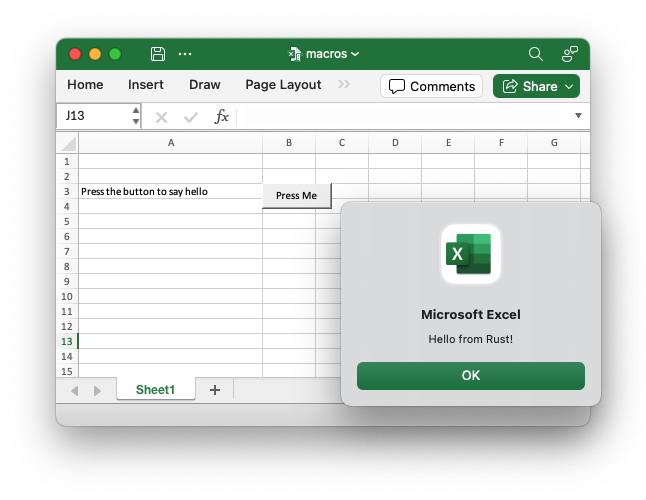
Output file after running macro:
If the VBA file contains functions you can then refer to them in calculations
using Worksheet::write_formula():
// SPDX-License-Identifier: MIT OR Apache-2.0
//
// Copyright 2022-2026, John McNamara, jmcnamara@cpan.org

//! The following example demonstrates a simple example of adding a vba project
//! to an xlsm file.
use rust_xlsxwriter::{Workbook, XlsxError};

fn main() -> Result<(), XlsxError> {
    let mut workbook = Workbook::new();

    workbook.add_vba_project("examples/vbaProject.bin")?;

    let worksheet = workbook.add_worksheet();

    worksheet.write_formula(0, 0, "=MyMortgageCalc(200000, 25)")?;

    // Note the `.xlsm` extension.
    workbook.save("macros.xlsm")?;

    Ok(())
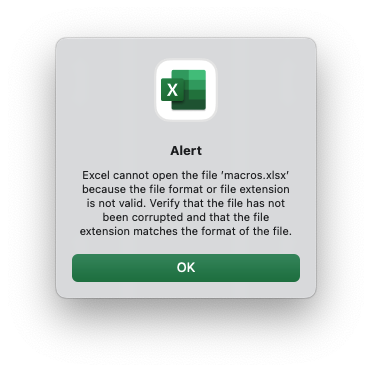
}Note: Excel files that contain functions and macros must use an .xlsm
extension or else Excel will complain and possibly not open the file.
// SPDX-License-Identifier: MIT OR Apache-2.0
//
// Copyright 2022-2026, John McNamara, jmcnamara@cpan.org

//! The following example demonstrates a simple example of adding a vba project
//! to an xlsm file.
use rust_xlsxwriter::{Workbook, XlsxError};

#[allow(unused_variables)]
fn main() -> Result<(), XlsxError> {
    let mut workbook = Workbook::new();

    workbook.add_vba_project("examples/vbaProject.bin")?;

    let worksheet = workbook.add_worksheet();

    // Note the `.xlsm` extension.
    workbook.save("macros.xlsm")?;

    Ok(())
}
Here is the dialog that appears when a valid xlsm file is incorrectly given a
xlsx extension:
Setting the VBA Object Names
VBA macros generally refer to workbook and worksheet objects via names such as
ThisWorkbook and Sheet1, Sheet2 etc.
If the imported macro uses other names, you can set them using the
Workbook::set_vba_name() and Worksheet::set_vba_name() methods as
follows.
// SPDX-License-Identifier: MIT OR Apache-2.0
//
// Copyright 2022-2026, John McNamara, jmcnamara@cpan.org

//! The following example demonstrates a simple example of adding a vba project
//! to an xlsm file.
use rust_xlsxwriter::{Workbook, XlsxError};

fn main() -> Result<(), XlsxError> {
    let mut workbook = Workbook::new();

    workbook.add_vba_project("examples/vbaProject.bin")?;
    workbook.set_vba_name("MyWorkbook")?;

    let worksheet = workbook.add_worksheet();
    worksheet.set_vba_name("MySheet1")?;

    // Note the `.xlsm` extension.
    workbook.save("macros.xlsm")?;

    Ok(())
}Note: If you are using a non-English version of Excel you need to pay particular attention to the workbook/worksheet naming that your version of Excel uses and add the correct VBA names. You can find the names that are used in the VBA editor:
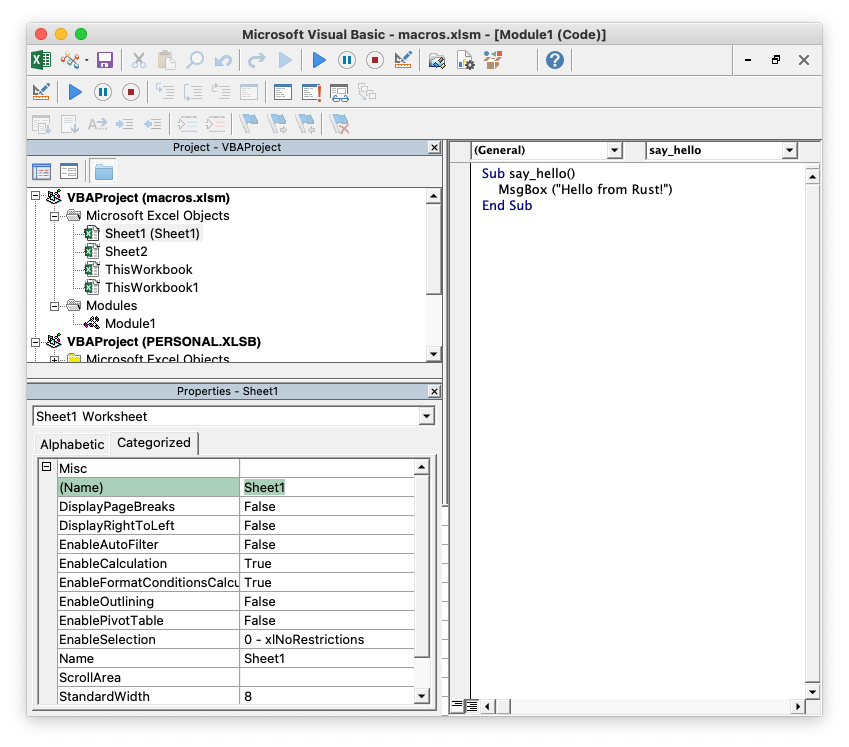
You can also find them by unzipping the xlsm file and grepping the component
XML files. The following shows how to do that using system unzip and libxml's
xmllint to format the XML for clarity:
$ unzip myfile.xlsm -d myfile
$ xmllint --format `find myfile -name "*.xml" | xargs` | grep "Pr.*codeName"

    <workbookPr codeName="MyWorkbook" defaultThemeVersion="124226"/>
    <sheetPr codeName="MySheet"/>
Adding a VBA Macro Signature File to a rust_xlsxwriter File
VBA macros can be signed in Excel to allow for further control over execution.
The signature part is added to the xlsm file in another binary called
vbaProjectSignature.bin.
The vba_extract utility will extract the vbaProject.bin and
vbaProjectSignature.bin files from an xlsm file with signed macros.
These files can be added to a rust_xlsxwriter file using the
Workbook::add_vba_project_with_signature() method:
// SPDX-License-Identifier: MIT OR Apache-2.0
//
// Copyright 2022-2026, John McNamara, jmcnamara@cpan.org

//! The following example demonstrates a simple example of adding a vba project
//! to an xlsm file.
use rust_xlsxwriter::{Workbook, XlsxError};

#[allow(unused_variables)]
fn main() -> Result<(), XlsxError> {
    let mut workbook = Workbook::new();

    workbook.add_vba_project_with_signature(
        "examples/vbaProject.bin",
        "examples/vbaProjectSignature.bin",
    )?;

    let worksheet = workbook.add_worksheet();

    // Note the `.xlsm` extension.
    workbook.save("macros.xlsm")?;

    Ok(())
}
What to do if it doesn't work
The rust_xlsxwriter test suite contains several tests to ensure that this feature works and there is a working example shown above. However, there is no guarantee that it will work in all cases. Some trial and error may be required and some knowledge of VBA will certainly help. If things don't work out here are some things to try:
-
Start with a simple macro file, ensure that it works, and then add complexity.
-
Check the code names that macros use to refer to the workbook and worksheets (see above). In general VBA uses a code name of
ThisWorkbookto refer to the current workbook and the sheet name (such asSheet1) to refer to the worksheets. These are the defaults used by rust_xlsxwriter. If the macro uses other names, or the macro was extracted from an non-English language version of Excel, then you can specify these using the workbook and worksheetset_vba_name()methods.